Published November 29, 2025
Stop Paying for Headshots: How to Standardize Your Team Photos with AI
The easiest way to fix your disjointed team page and save thousands on photography.
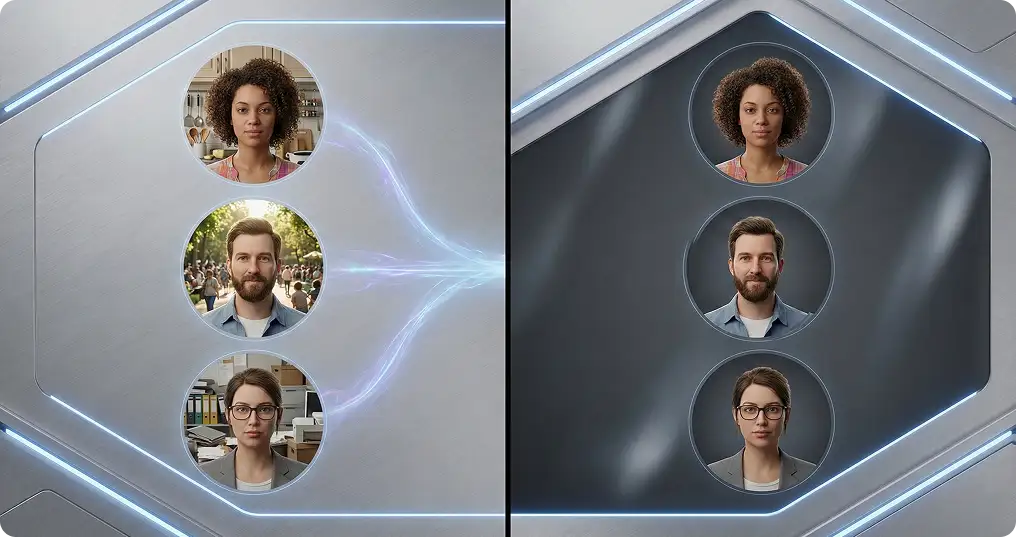
Anyone who has ever tried to update a company team page knows how chaotic it can get. You open the folder of photos and it looks like a random collection of unrelated images. The CEO has a studio portrait from a time when smartphones looked different. The new intern sends in a photo taken at a birthday party. Someone else has a casual selfie from their kitchen. Another person submits a cropped wedding picture because they had nothing else. You want your company website to look polished, modern, and trustworthy. Instead it ends up looking like an online scrapbook that twelve different people contributed to without talking to each other. Trying to fix that mess the traditional way is painful. You need to schedule a photographer. You need to get everyone to show up at the same time. You need to coordinate outfits, lighting, and framing. It is expensive. It is stressful. And it never seems to happen on time. Here is the part most people do not realize. You do not need any of that. You do not need a studio. You do not need a photographer. You do not need perfect lighting or professional cameras. You only need Soloa. With Soloa, you can take a collection of completely mismatched photos and transform them into a consistent set of professional team portraits that look like they came from the same session.
The Simple Team Photo Fix You Can Do Right From Your Desk
There is no planning required. No scheduling headaches. No long email threads asking people to find a photographer. With Soloa, anyone on your team can take a photo in their living room and you can turn it into a polished, professional portrait in a few steps. Below is a simple guide you can follow to create a clean and unified look for your entire team.
Step 1: Ask for a Photo
Tell your team members to send you any recent photo that clearly shows their face. They do not need fancy lighting or a proper background. A regular phone camera works perfectly. As long as the face is visible, Soloa can handle the rest.
Step 2: Log in to Your Soloa Dashboard
Open Soloa and go to the section called AI Image. Everything you need is right there, ready to use.
Step 3: Choose the AI Standardiser Tool
Inside the AI apps section, you will see a tool called AI image standardizer. This is not an ordinary background remover. It is built to understand that your images belong together and should look like they came from the same environment.
Step 4: Upload All Your Photos
Drag every photo into the upload area at once. There is no need to process them individually. Soloa is designed to handle large sets of photos in a single batch. After the upload, you can choose the background style you want. The choice is yours. You only need to pick it once. Soloa will apply it to every photo.
Step 5: Generate Your Final Photos
Click the generate button and let Soloa do the work. The AI will complete three important steps for each image.
- It will remove the original background with very detailed precision.
- It will place the person on your chosen background.
- It will make small lighting adjustments so everyone looks like they were photographed in the same space.
The entire process takes less than a minute.
The Final Result
You start with a folder full of inconsistent photos taken in different places, with different lighting, and with different levels of quality. You end up with a clean, consistent set of professional portraits that make your company look organized, modern, and thoughtful. You save money. You save time. You avoid the frustration of scheduling an entire team for a studio session. And you get a result that looks like you hired a photographer for each member of your team.